Quick Start Guide
Go from zero to a compiled paper in 10 minutes.
This guide walks you through creating a paper, writing with AI, adding references, compiling, and viewing the result. Follow along step-by-step.
Prerequisites
- A Scriptora AI account (sign up free)
- No LaTeX experience required — the AI handles the syntax
Step 1 — Create a new paper
- Sign in and click + New Paper from the Dashboard or top navigation
- Choose AI-Guided Setup (or pick Blank Paper if you already have content)
- Fill in the setup wizard:
- Research Stage: Where you are (Defined Topic, Clear Research Question, Outline, or Complete Draft)
- Research Type: Review Article, Methods Paper, Case Study, Conference Paper, etc.
- Target Journal: NeurIPS, Nature, PLOS ONE, arXiv, or a custom venue
- Enter your specific research question and choose a paper structure
- Click Generate — the AI creates your workspace and opens the creation mode
You'll land in the editor with main.tex open.
Step 2 — Explore the workspace
Your workspace has three areas:
- Left sidebar — file list, compile button, upload
- Center — the LaTeX editor
- Right — click the chat icon to open the AI assistant
The AI has already read your main.tex. You can start chatting immediately.
Step 3 — Write with the AI
Open the AI chat panel (right side). Try these prompts:
Write a detailed Introduction section based on the paper structure.The AI will:
- Read your current
main.tex - Write the section content
- Insert it directly into your file — the editor updates live
Try a follow-up:
The introduction is too long. Make it more concise, keeping only the key motivation and contributions.Step 4 — Add a figure with Python
Ask the AI to generate a chart:
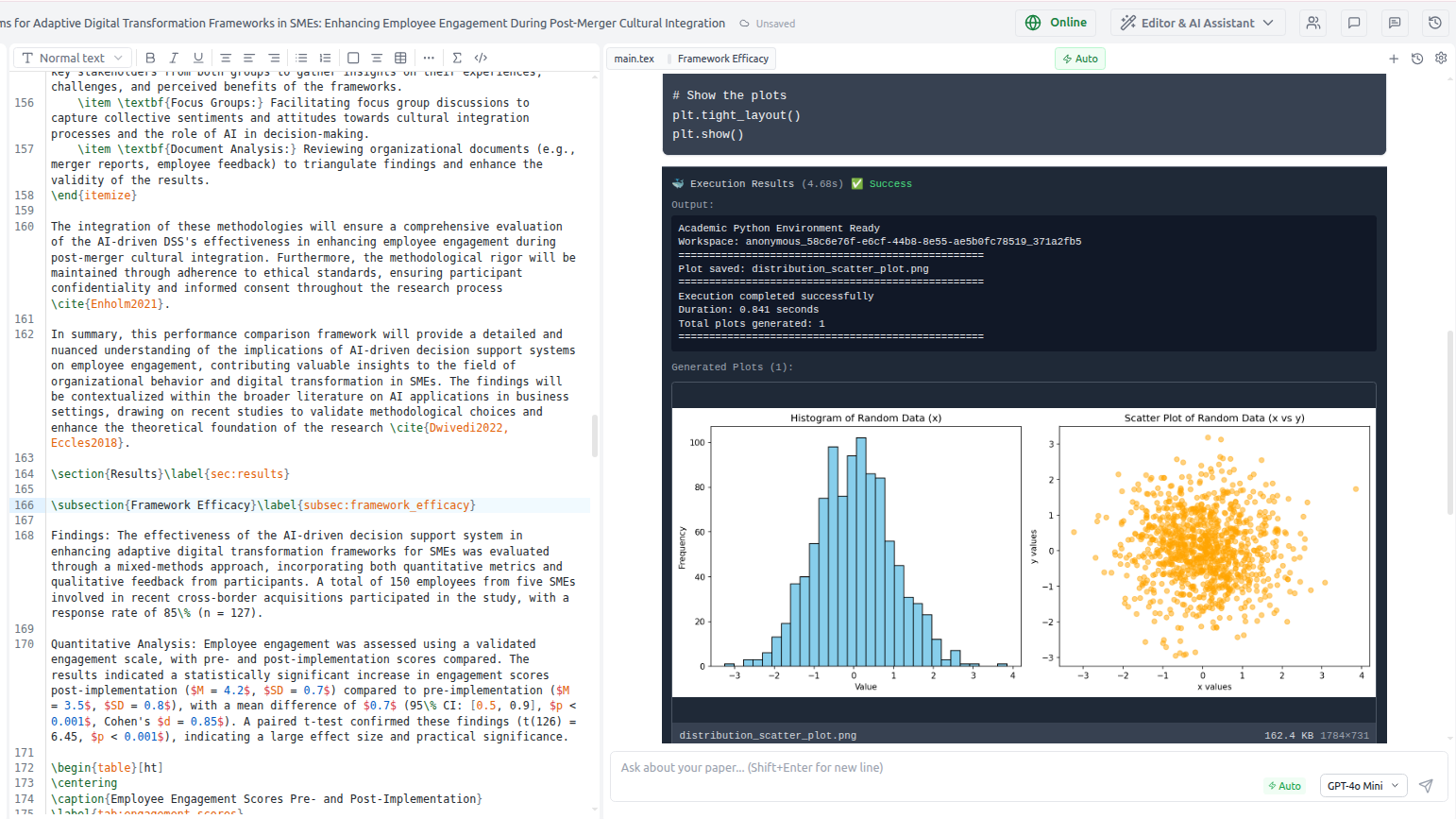
Create a bar chart comparing the performance of three methods: Baseline (72%), Our Method (89%), and State-of-the-art (85%). Use a professional academic style.The AI will:
- Write and execute Python code in a secure sandbox
- Display the chart in the chat so you can review it
- Save it to
figures/comparison_bar_chart.pngin your workspace - Add a
\includegraphicscommand to your paper
Step 5 — Search for references
Ask the AI to find citations:
Search for the top papers on contrastive self-supervised learning and add the best 3 to my references.The AI will:
- Search arXiv, Semantic Scholar, and other sources
- Show a list of papers with abstracts
- Add BibTeX entries to
references.bib - Insert
\cite{}commands in the relevant sections
You can also use the References tab in the sidebar to search manually.
Step 6 — Compile and preview
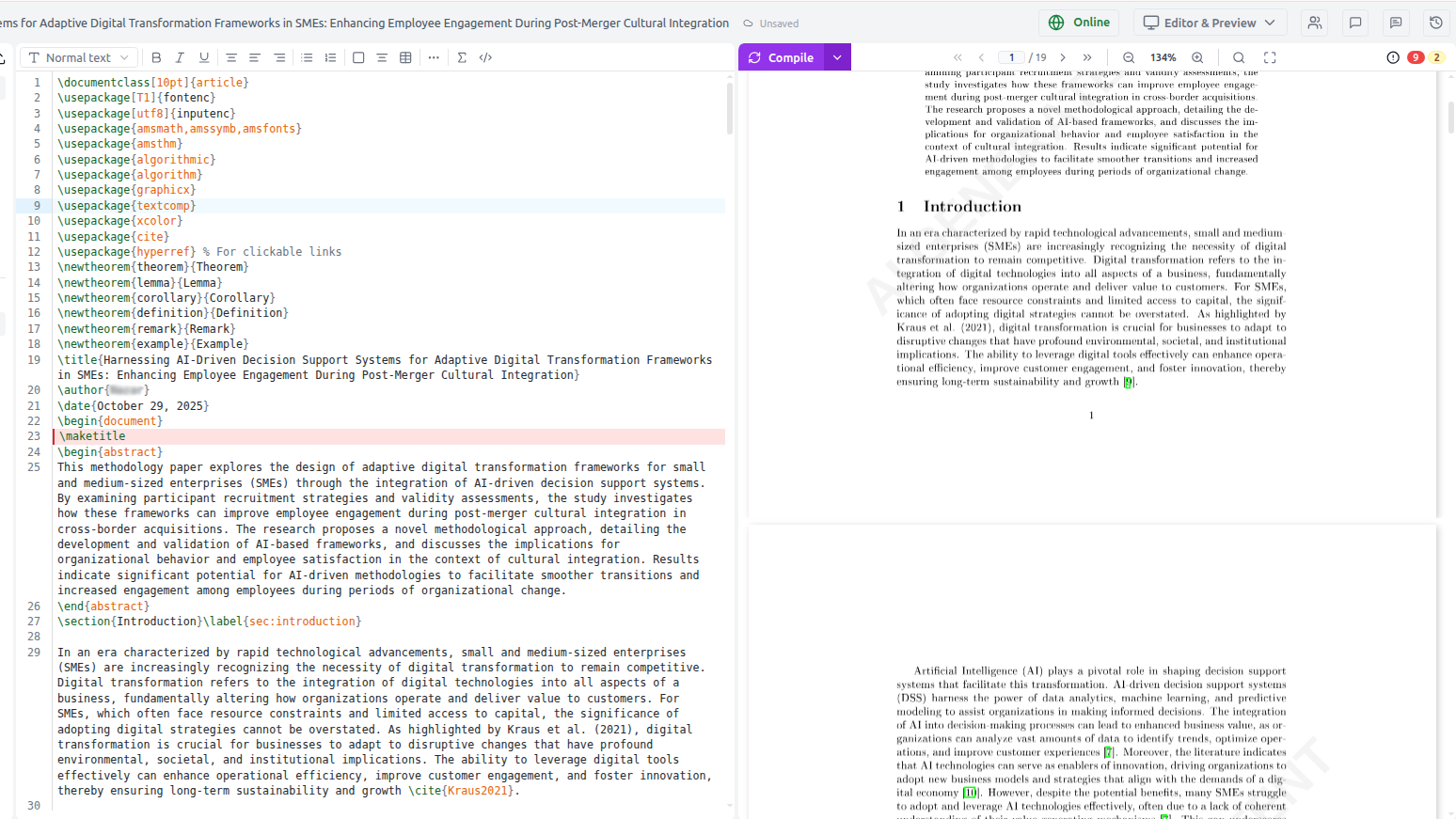
Click the ▶ Compile button in the sidebar or press Ctrl+Enter.
After a few seconds:
- The PDF preview opens in the right panel
- Any errors appear in the Error panel below the PDF
- Click an error to jump to the source line
SyncTeX navigation:
- Click anywhere in the PDF → jumps to that line in the editor
- Move your cursor in the editor → highlights the corresponding location in the PDF
Step 7 — Fix errors with AI
If the compilation fails, click Fix errors with AI in the error panel. The AI reads the error log and applies targeted fixes automatically.
Step 8 — Save a version
When you're happy with your progress, save a named branch:
- Click the 🌿 Branch icon in the header toolbar
- Type a name: e.g.,
"first-draft"or"after-revision-1" - Press Enter
You can roll back to any saved branch at any time from the Versions panel.
What's next?
AI Writing Assistance
Explore everything the AI can do: rewrite, extend, improve, format for journals.
Python Figures
Generate publication-quality plots, TikZ diagrams, and graphviz flowcharts.
Literature Search
Master the multi-source reference search and BibTeX management.
Peer Review
Import reviewer comments and generate a structured response letter.