Creating a Project
Learn how to start a new paper — from a blank document, the 7-stage AI pipeline, an arXiv import, or a template.
Every paper in Scriptora AI lives in a project. A project contains your LaTeX files, figures, references, compiled PDFs, and chat history — all in one place.
Starting a new project
Navigate to Projects → New Paper (or click the + New button in the dashboard).
You'll see three options:
Blank Paper
Start from a minimal LaTeX template with preamble and section stubs. Best when you have your own structure in mind.
AI-Guided Creation
Answer a few questions about your paper. The AI builds a tailored scaffold and then runs a 7-stage pipeline to generate a complete draft — literature review, methodology, results, and all.
Import from arXiv
Paste an arXiv URL or ID. Scriptora downloads the source archive and imports all .tex and .bib files into your workspace.
Option 1 — Blank paper
You'll be taken directly to a fresh editor with a minimal main.tex and references.bib.
Edit the \title{} command in main.tex, or ask the AI: "Update the title to..."
Add sections with \section{Introduction} or ask the AI to generate a complete section for you.
Option 2 — AI-guided creation (7-stage pipeline)
This option walks you through a short setup wizard, then opens a dedicated creation workspace where the AI generates your paper in seven structured stages.
Step 1 — Setup wizard
Fill in three fields:
| Field | What to choose |
|---|---|
| Research Stage | Where you are: Defined Topic, Clear Research Question, Outline, or Complete Draft |
| Research Type | Review Article, Methods Paper, Case Study, Conference Paper, etc. |
| Target Journal | Nature, Science, PLOS ONE, arXiv, or a custom venue |
Click Continue.
Step 2 — Research configuration
On the next screen:
- Specific Research Question — Type your precise research question (e.g., "How do transformer models compare to CNNs for climate prediction?"). This drives everything the AI writes.
- Paper Structure — Choose a structure appropriate for your paper type:
- PRISMA 2020 — Systematic review with 27-item checklist
- Narrative Review — Flexible organization for comprehensive synthesis
- Meta-Analysis — Quantitative synthesis with statistical pooling
- Scoping Review — Broad mapping of evidence
- AI Model — Claude Sonnet (default). You can also choose Claude Haiku for faster generation, GPT-4o, GPT-4o-mini, or other available models.
Click Generate and accept the consent agreement. Your project is created and the editor opens in creation mode.
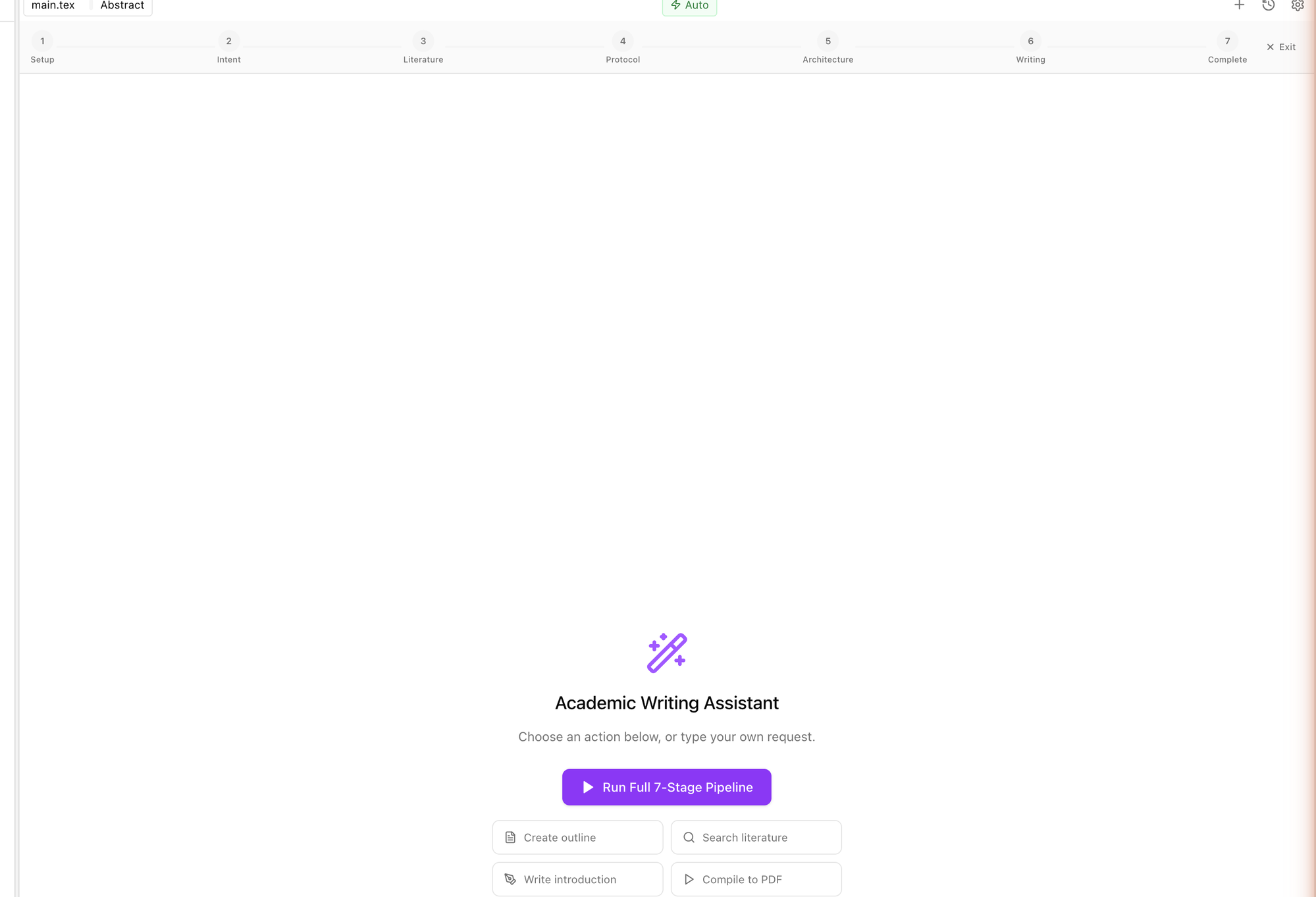
Step 3 — Run the 7-stage pipeline
The AI panel shows the Academic Writing Assistant with a prominent Run Full 7-Stage Pipeline button and a progress bar showing all seven stages:
| Stage | Name | What happens |
|---|---|---|
| 1 | Setup | Project scaffolding, LaTeX template initialization |
| 2 | Intent Crystallization | AI defines research objectives and scope; presents a Planning Review for your approval |
| 3 | Literature Research | Searches 6 academic databases (OpenAlex, arXiv, PubMed, Semantic Scholar, CrossRef, CORE); presents 10–20 papers to select |
| 4 | Research Protocol | Defines methodology, inclusion/exclusion criteria, analysis framework |
| 5 | Paper Architecture | Generates section-by-section outline with content specifications |
| 6 | Content Generation | Writes each section — introduction, methods, results, discussion — and saves to main.tex after each one |
| 7 | Complete | Final compile, reference list assembly, formatting pass |
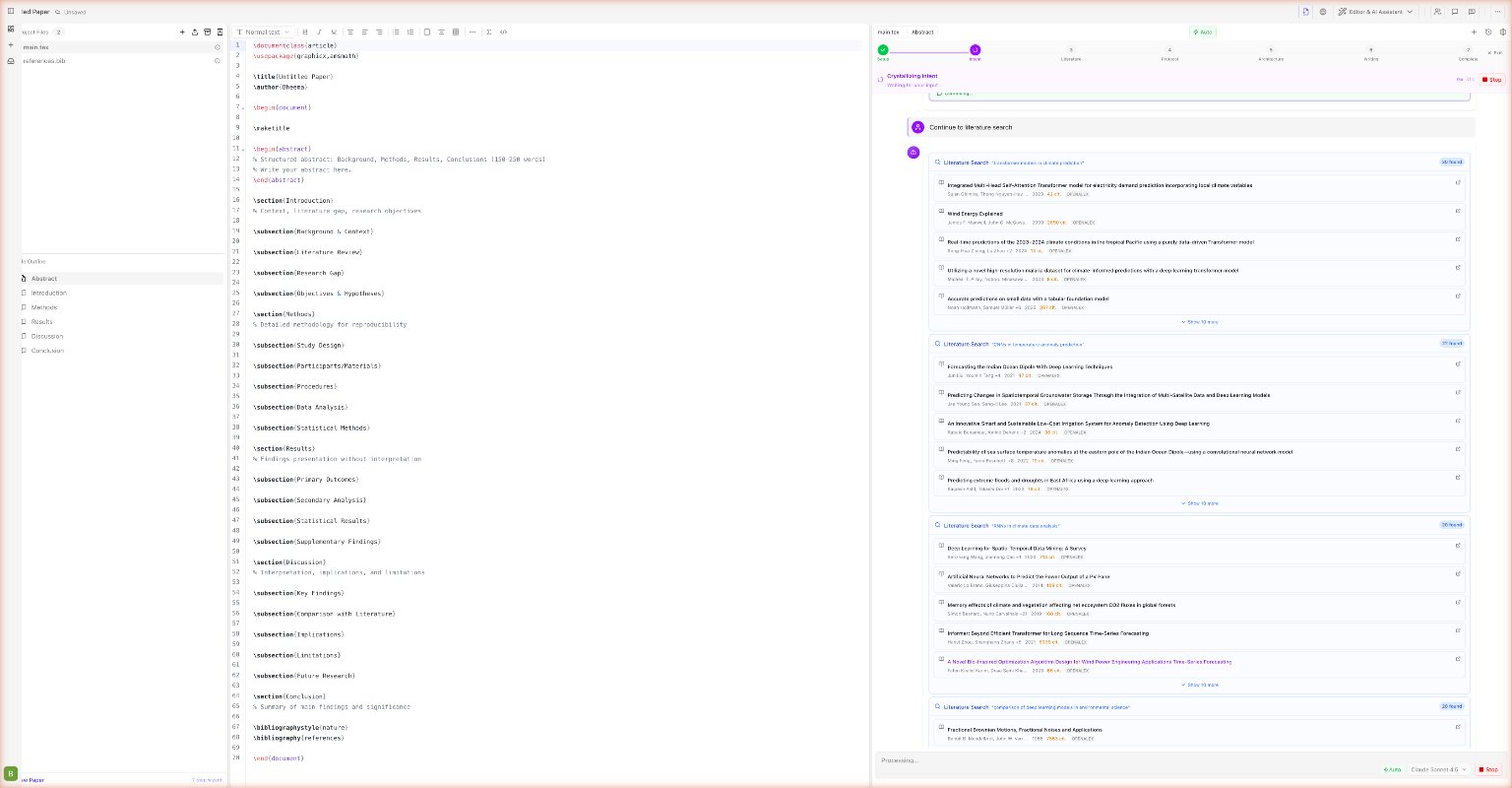
At Stage 2 the AI pauses for a Planning Review — it summarises the research scope and asks if you want to continue, adjust objectives, or change focus. This checkpoint ensures the AI writes exactly what you intend before investing in the full literature search.
At Stage 3 you can deselect irrelevant papers before advancing. The AI uses only the papers you select as the evidence base for all subsequent stages.
Quick actions (instead of the full pipeline)
You can also run individual stages manually from the quick action buttons:
- Create outline — Generate a section outline without writing full content
- Search literature — Run just the literature search
- Write introduction — Write or rewrite the Introduction section
- Compile to PDF — Compile the current
main.tex
Or type your own request in the chat input — the AI understands natural language instructions in the context of your paper.
Option 3 — Import from arXiv
Or use the Import arXiv button in the sidebar toolbar once inside an existing project.
e.g. https://arxiv.org/abs/2301.07041 or just 2301.07041.
Scriptora shows the paper title, authors, and file list. Confirm to import.
All source files appear in your workspace sidebar. You can continue editing, add comments, or ask the AI to extend specific sections.
arXiv imports are ideal for building on existing work in your own workspace. Always check the paper's license before redistributing modified versions.
Accessing your projects
All projects appear on the Dashboard at /dashboard. You'll see summary statistics (total papers, in-progress, completed, collaborations) and your recent papers with quick-open actions.
Use templates for common paper types (IEEE, ACM, NeurIPS, Nature) — they configure the correct preamble and style automatically. See the Template Gallery.