Workspace Overview
A guided tour of the Scriptora AI workspace: editor, AI panel, file sidebar, and PDF preview.
The Scriptora AI workspace is divided into three main panels. You can resize any panel by dragging the dividers between them.
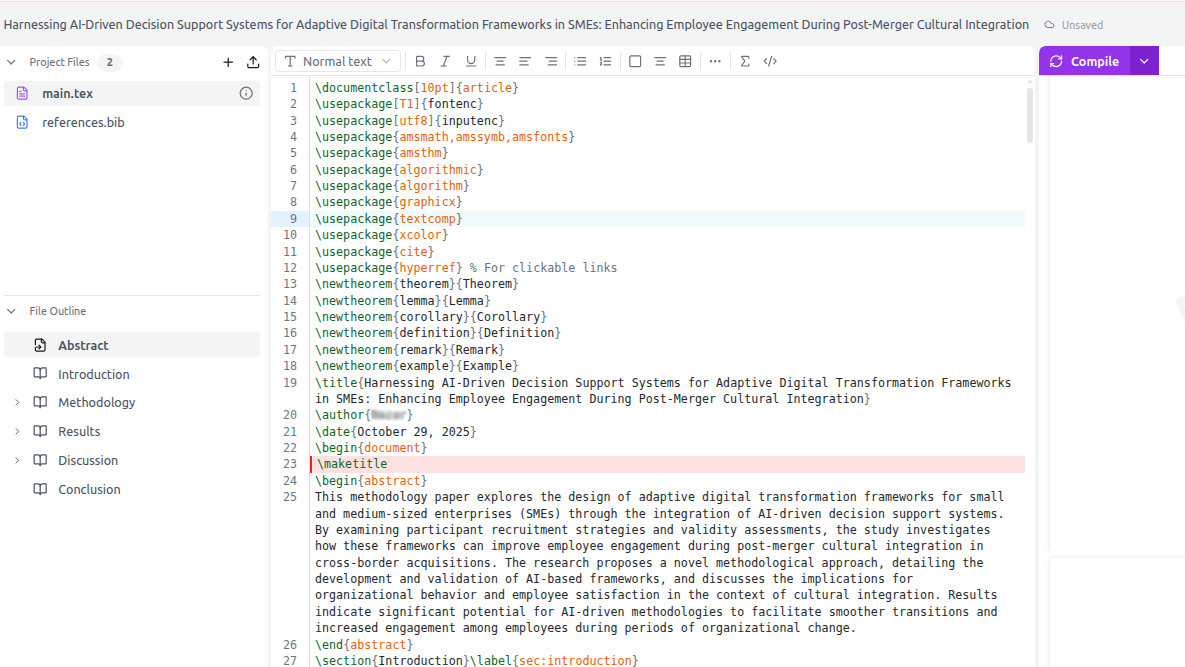
Panel layout
Left — File sidebar
The sidebar lists every file in your project:
| Icon | Type | Example |
|---|---|---|
| 📄 | .tex source files | main.tex, sections/intro.tex |
| 📚 | .bib reference files | references.bib |
| 🖼️ | Images & figures | figures/chart.png, figures/diagram.svg |
| 🐍 | Python scripts | analysis.py |
Sidebar actions (toolbar at top of sidebar):
- Compile — Run pdflatex and render the PDF
- New file — Create a
.texor.bibfile - Upload — Upload images, PDFs, or zip archives
- Import arXiv — Download an arXiv source package
- Add reference (DOI) — Paste a DOI or arXiv ID to auto-fetch BibTeX
Click any file to open it in the editor. Right-click for rename and delete options.
Center — LaTeX editor
The editor is built on CodeMirror 6 with a LaTeX-specific parser (same foundation as Overleaf). Features include:
- Syntax highlighting for all LaTeX commands, environments, math, comments
- Command autocomplete — type
\to see 300+ command completions;\cite{to autocomplete citation keys;\ref{to autocomplete labels - Code folding — fold any
\begin{...}environment or\section - Bracket matching and auto-close for
{,[,$ - Browser spellcheck — misspelled words are underlined in red
- Error markers — after compilation, error lines are highlighted in the gutter
Right — AI chat or PDF preview
The right panel toggles between two views:
AI Chat panel — Interact with the AI assistant. Ask it to:
- Write or improve sections
- Generate figures with Python
- Search the literature and add citations
- Compile the paper and fix errors
PDF Preview panel — Shows the compiled PDF. Features:
- Click-to-source — Click anywhere in the PDF to jump to the corresponding LaTeX line (SyncTeX)
- Source-to-PDF — Your cursor position in the editor is mirrored in the PDF
- Zoom, fit-to-page, full-screen controls
- Error panel below the PDF listing all LaTeX errors and warnings
Layout modes
Use the layout switcher in the top toolbar to change the panel arrangement:
| Mode | Layout |
|---|---|
| Editor only | Full-width LaTeX editor, sidebar visible |
| Editor + Chat | Editor left, AI panel right |
| Editor + PDF | Editor left, PDF preview right |
| Three-panel | Sidebar + Editor + PDF/Chat |
On mobile and small screens, panels stack vertically and you can switch between them using the bottom tab bar.
Header toolbar
At the top of the workspace:
- Compile (▶) — Compile with the current engine (pdflatex / xelatex / lualatex)
- Undo / Redo — Editor history
- Share — Invite collaborators with viewer/editor/owner permissions
- Version branch (git icon) — Save the current state as a named branch
- Review (clipboard icon) — Open the peer review workflow
- Submit to arXiv — Package and prepare arXiv submission
- Peer Review Simulator (graduation cap icon) — Get AI reviewer feedback with scores and section-by-section feedback
- Watermark settings (shield icon) — Control AI watermark disclosure preferences
- Settings — Account and editor preferences
Keyboard shortcuts
Press ? at any time to open the keyboard shortcuts overlay, or see the full list in the Keyboard Shortcuts guide.