Python Figures & Data Analysis
Generate publication-quality charts, diagrams, and tables using the AI-powered Python sandbox.
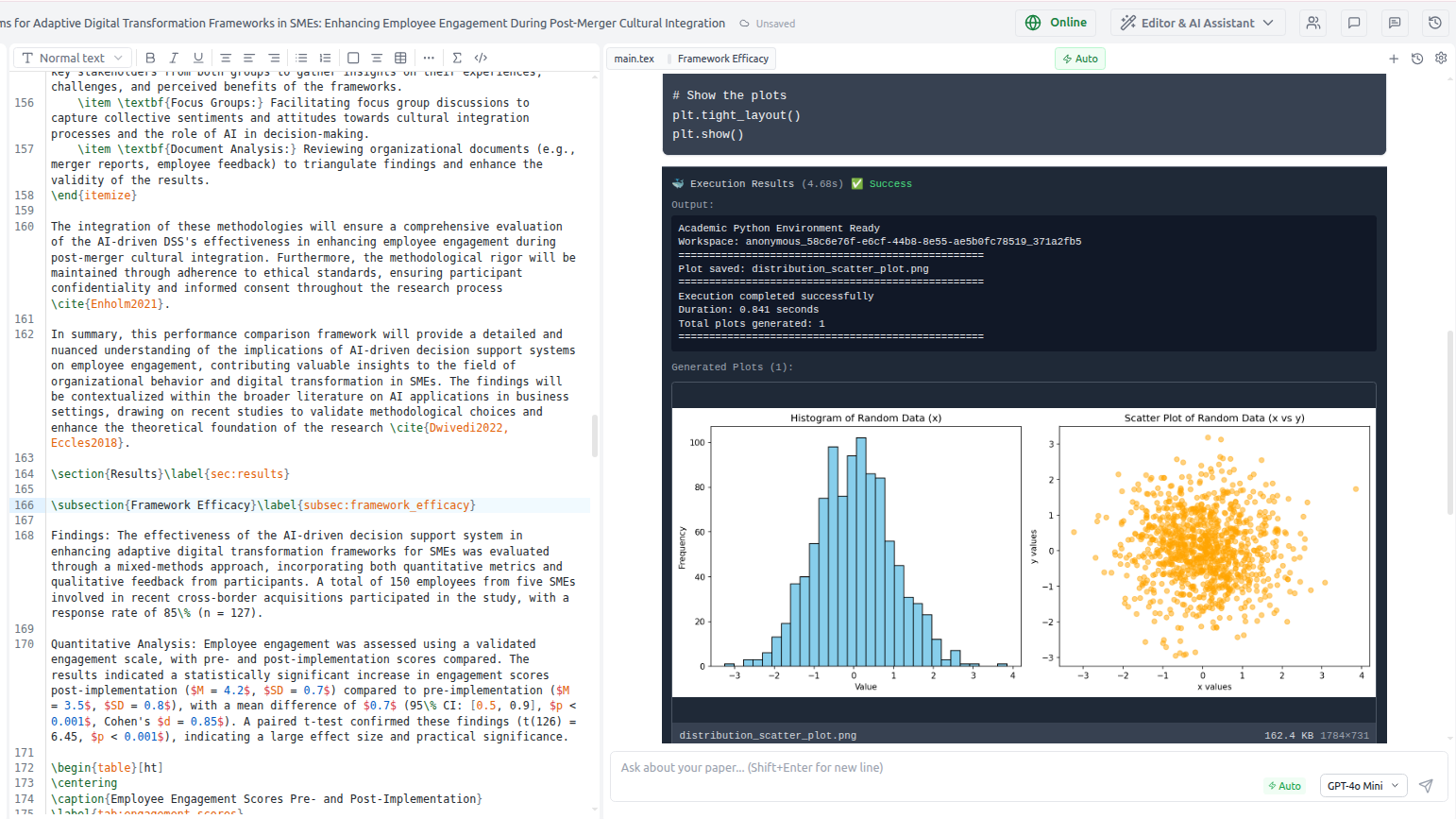
Scriptora AI includes a Python execution sandbox — a secure Docker container with a full scientific Python stack. Ask the AI to run code, and the resulting figures appear directly in the chat for your review before being added to your paper.
Available libraries
| Library | Version | Use case |
|---|---|---|
| matplotlib | 3.10.8 | Publication-quality plots: line, bar, scatter, heatmap, 3D |
| seaborn | 0.13.2 | Statistical charts: violin, box, regression, pairplot |
| numpy / pandas | latest | Computation and data manipulation |
| scipy / statsmodels | latest | Statistical tests: t-test, ANOVA, regression |
| scikit-learn | latest | ML metrics: confusion matrix, ROC curves |
| graphviz | 0.21 | Flowcharts, DAGs, architecture diagrams (SVG output) |
| pycairo | 1.29.0 | Custom vector graphics |
| reportlab | 4.4.10 | PDF figures |
| Pillow | 12.1.1 | Image manipulation |
| networkx | latest | Network / graph diagrams |
Generating a chart
Simply describe what you want in the chat:
Plot a learning curve showing training and validation loss over 50 epochs.
The training loss decreases from 0.95 to 0.12, and validation loss from 0.98 to 0.21.
Use a clean academic style.
The AI will:
- Write the Python code
- Execute it in the secure sandbox
- Show the chart inline in the chat — you can review it before it's added to your paper
- Save it as
figures/loss_curve.pngin your workspace - Optionally insert the
\includegraphicscommand intomain.tex
Reviewing figures in chat
When a figure is generated, it appears as an image card below the tool card:
- Click the image to expand it to full height
- ⤢ Expand toggle to see more detail
- ↓ Download to save locally
- ↗ Open to view full-size in a new tab
You can then give feedback:
The font is too small and I'd like the colors to be colorblind-safe.
Also change "Training" to "Train loss" in the legend.
The AI regenerates the figure based on your feedback.
Workflow: figure in the paper
Describe it in the chat: "Create a grouped bar chart comparing accuracy across 4 datasets for 3 models."
The figure appears inline. Give feedback if needed until you're happy with it.
Once generated, the figure is automatically saved to figures/ in your workspace — no extra step needed.
Ask the AI: "Add this figure to the Results section with an appropriate caption." Or add it manually with \includegraphics{figures/chart_name}.
You don't need to call plt.savefig() manually. The sandbox intercepts plt.show() and saves the figure automatically to figures/. Just call plt.show() at the end of your plot code.
Graphviz flowcharts and DAGs
For architecture diagrams and flowcharts, graphviz produces clean vector SVG output:
Create a system architecture diagram showing: Data Collection → Preprocessing →
Feature Extraction → Model Training → Evaluation.
Use a left-to-right layout with blue boxes.
The AI uses the render_diagram() helper:
import graphviz as gv
dot = gv.Digraph(graph_attr={'rankdir': 'LR', 'bgcolor': 'white'})
dot.attr('node', shape='box', style='filled', fillcolor='#dbeafe', fontname='Helvetica')
dot.node('A', 'Data Collection')
dot.node('B', 'Preprocessing')
dot.node('C', 'Feature Extraction')
dot.node('D', 'Model Training')
dot.node('E', 'Evaluation')
dot.edges(['AB', 'BC', 'CD', 'DE'])
render_diagram(dot, 'pipeline', fmt='svg')
The resulting .svg is saved to figures/pipeline.svg and can be included in LaTeX with \includegraphics{figures/pipeline}.
LaTeX tables from data
The AI can compute statistics and generate properly formatted LaTeX tables:
Analyze this data and create a LaTeX table with mean, std, and 95% CI
for each group: Group A: [82, 85, 79, 88, 91], Group B: [71, 74, 68, 77, 73]
The AI returns a ready-to-paste tabular environment.
Statistical analysis
Run significance tests and other computations:
Perform a two-sample t-test between these two groups and report the
t-statistic, p-value, and confidence interval.
Group 1: [45.2, 47.8, 43.1, 48.9, 46.5]
Group 2: [38.4, 41.2, 39.7, 42.1, 40.8]
The output is reported as text (not an image) that you can paste directly into your Results section.
Security and limits
- Network disabled: the sandbox has no internet access
- Timeout: 60 seconds per execution
- Memory: 1 GB RAM limit
- Storage: figures are automatically cleaned up after saving to your workspace
The sandbox resets between executions — variables and data from one call are not available in the next. Structure your code to be self-contained, or ask the AI to combine multiple steps into one call.