AI Chat Interface
How to use the AI chat panel to write, edit, and manage your paper.
The AI chat panel is the primary interface for interacting with Scriptora's AI assistant. It's powered by Claude and has full access to your workspace files.
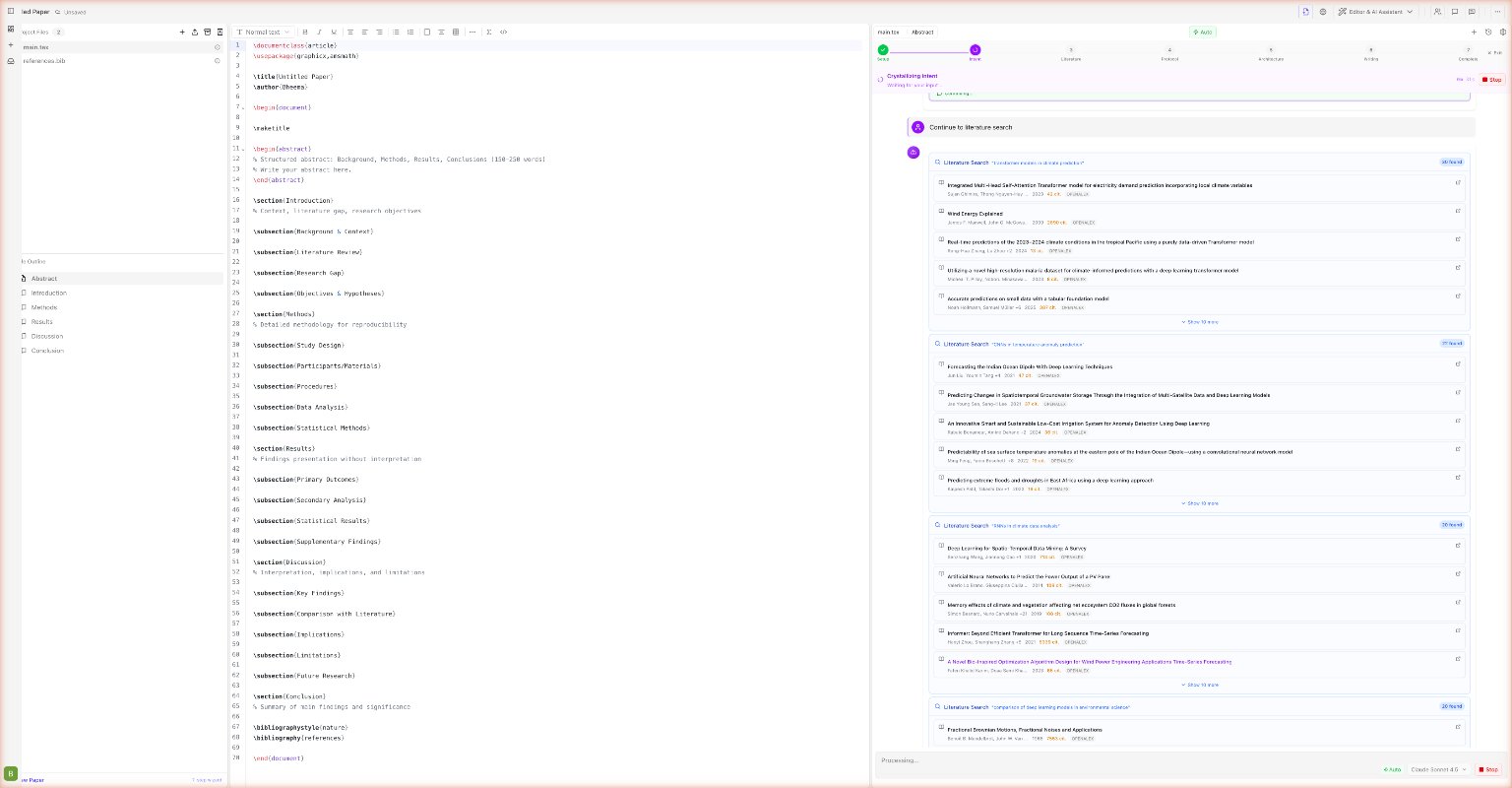
Opening the chat
Click the chat icon in the right panel header, or press Ctrl+Shift+A to toggle the AI panel.
Sending messages
Type your message in the input box at the bottom and press Enter (or click the send button). The AI responds in real time.
You can send:
- Natural language requests: "Write an abstract for this paper"
- Edit instructions: "Make the introduction more concise"
- Questions: "What does
\hfilldo in LaTeX?" - Compound tasks: "Search for papers on diffusion models, add the top 3 to references, then write a related work paragraph citing them"
What the AI can see
By default, the AI has access to:
- All files in your workspace (
.tex,.bib,.py, figures) - Conversation history — it remembers what you discussed earlier in the session
- Compiler output — it knows about errors from the last compilation
The AI does not have access to:
- Your other projects (each paper is isolated)
- External websites (the Python sandbox has no internet for security)
- PDF content of uploaded reference PDFs (unless you explicitly ask it to read one using the
readReferencePDFtool)
Tool activity cards
When the AI uses a tool, a colored card appears in the chat:
| Card color | Meaning |
|---|---|
| 🔵 Blue | Tool is running |
| ✅ Green | Tool completed successfully |
| ❌ Red | Tool failed |
Click a completed card to expand it and see exactly what was changed.
Common tool cards you'll see:
- Read File / List Files — AI is reading or browsing your workspace
- Edit File / Batch Edit / Multi-File Edit — AI made targeted changes
- Compile Paper — AI compiled the paper to PDF
- Execute Python — AI ran Python code (charts, analysis)
- Search Literature — AI searched academic databases for references
- Generate Table / Equation / Pseudocode — AI generated formatted LaTeX content
- Suggest Edit — AI proposed an inline tracked diff for your review
- Review Paper — AI simulated a peer review with scores and feedback
- Generate Cover Letter — AI wrote a journal submission cover letter
- Search Knowledge Base — AI searched across your uploaded papers
Managing chat history
Your conversation history is automatically saved and persists across sessions for each paper.
To clear the chat (start fresh without deleting your files):
- Click the ⋮ menu at the top of the chat panel → Clear conversation
Long conversations: When your conversation gets very long, the AI automatically summarizes older messages to stay within context limits. You'll see a gentle banner: "Conversation getting long — older messages may be summarized."
Conversation modes
Editing mode (default)
This is the normal mode for chatting while you work. The AI makes targeted edits to your files and responds conversationally.
Creation mode
Used during initial paper setup (see Creating a Project). The AI works through a structured pipeline to build your paper from scratch.
Model selection
Use the model selector in the chat input area to choose your preferred AI model:
| Model | Best for | Speed |
|---|---|---|
| Claude Sonnet (default) | Writing, editing, complex reasoning | Balanced |
| Claude Haiku | Simple edits, quick questions | Fast |
| Claude Opus | Hardest research tasks, long papers | Slower |
| GPT-4o | Alternative reasoning style | Balanced |
| GPT-4o-mini | Light tasks, cost-effective | Fast |
| GPT-4.1 / 4.1-mini / 4.1-nano | OpenAI's latest models | Varies |
Models marked Coming Soon (Gemini 2.5 Pro, Gemini 2.0 Flash, DeepSeek V3) are not yet available.
For charts, plots, and statistical workflows, use the dedicated Python Figures guide.
The AI reads your files before making changes — you don't need to paste content into the chat. Just say "Improve the conclusion" and it will find and edit it for you.